

- Connecting the Box to the control unit
- How to use wireless CarPlay/Android Auto
- How to use multi-window
- How to use screencast
- How to use screen mirroring
- Connecting the Box to the control unit
- Insert one end of the cable into your car's USB port. The USB port may be labeled with a smartphone icon.
- Insert the other end of the cable into the USB/Type-C port on the AI Box.


- After the box is powered, it will start automatically and the startup screen will be displayed on the car's display.
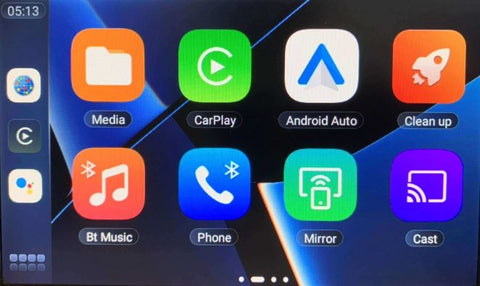
- Initial identification may take a few minutes. When the Box's main interface appears on the car's display, the connection is successful.
- How to use wireless CarPlay/Android Auto
- Turn on your phone's Bluetooth and Wi-Fi.
- Click the CarPlay or Android Auto icon on the Box's main interface to enter the connection interface.
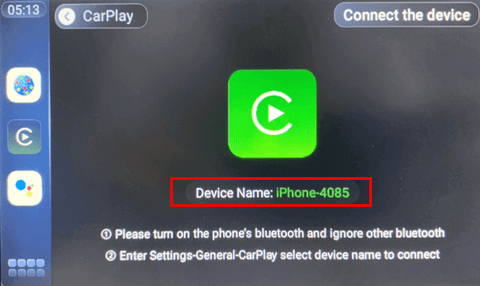
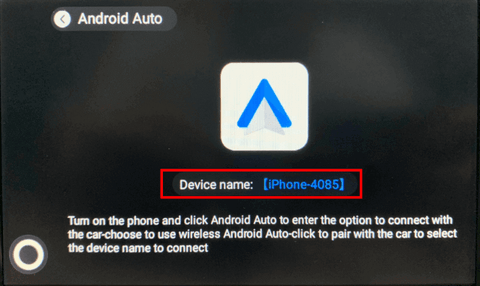
- Then on your phone
- iPhone: Go to Settings > General > CarPlay and select the device name to connect.
- Android Phone: Tap Android Auto to enter the car connection options > Choose to use wireless Android Auto > Tap to pair with the car and select the device name to connect.
- How to use multi-window
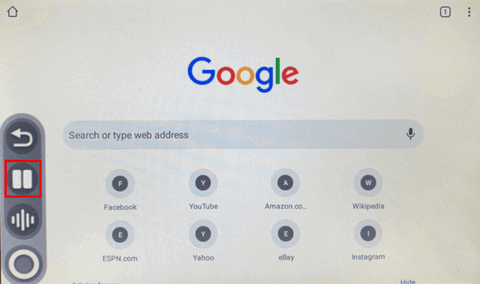
- Tap the empty area to call the Home button. > Tap the Home button.
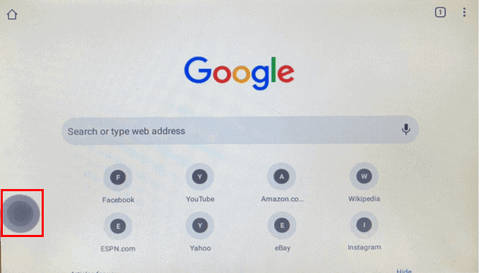
- Tap the multi-window button.
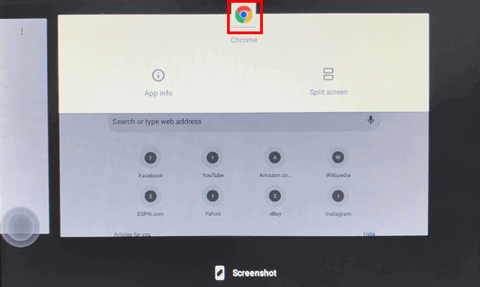
- Tap the app icon.
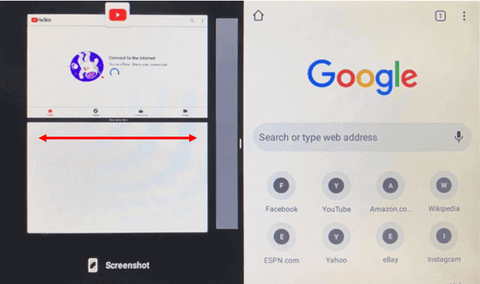
- Select another window you want.
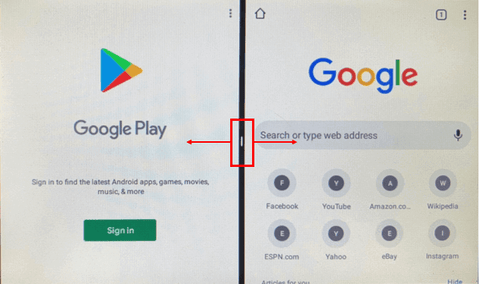
- How to stop multi-window: Press and hold the middle and swipe left or right.
- Tap the empty area to call the Home button. > Tap the Home button.
- How to use screencast
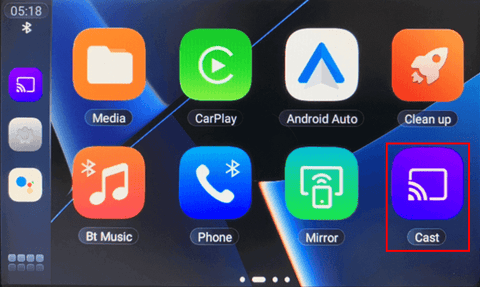
Before you begin, make sure your Box is connected to the same Wi-Fi network as your phone, or that your Box is connected to your phone's hotspot (Settings > Wi-Fi).- Tap the Cast icon > Verify your device name in the top left corner.
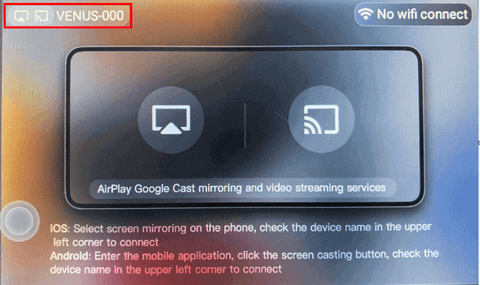
- Tap the "Cast" icon in the app on your phone > Select the device name to connect.
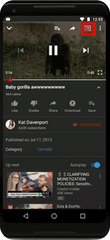

- Tap the Cast icon > Verify your device name in the top left corner.
- How to use screen mirroring
Before you begin, make sure your Box is connected to the same Wi-Fi network as your phone or that your Box is connected to your phone's hotspot (Settings > Wi-Fi)- Tap the Mirror icon > Select the icon corresponding to your phone's system

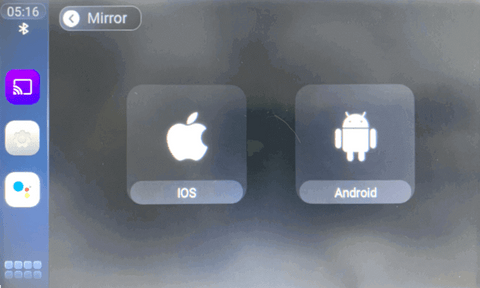
- Tap the "Screen Mirroring" icon on your phone > Select your device name to connect
- Tap the Mirror icon > Select the icon corresponding to your phone's system


